
Post-Call configuration
Learn how to configure post-call delivery methods in OmniDimension, including Email, Salesforce, Slack, Webhook , Hubspot etc.
1. Overview
After each call ends, OmniDimension allows you to deliver structured post-call data to external destinations.
- Salesforce
- Slack
- Webhook
- Hubspot
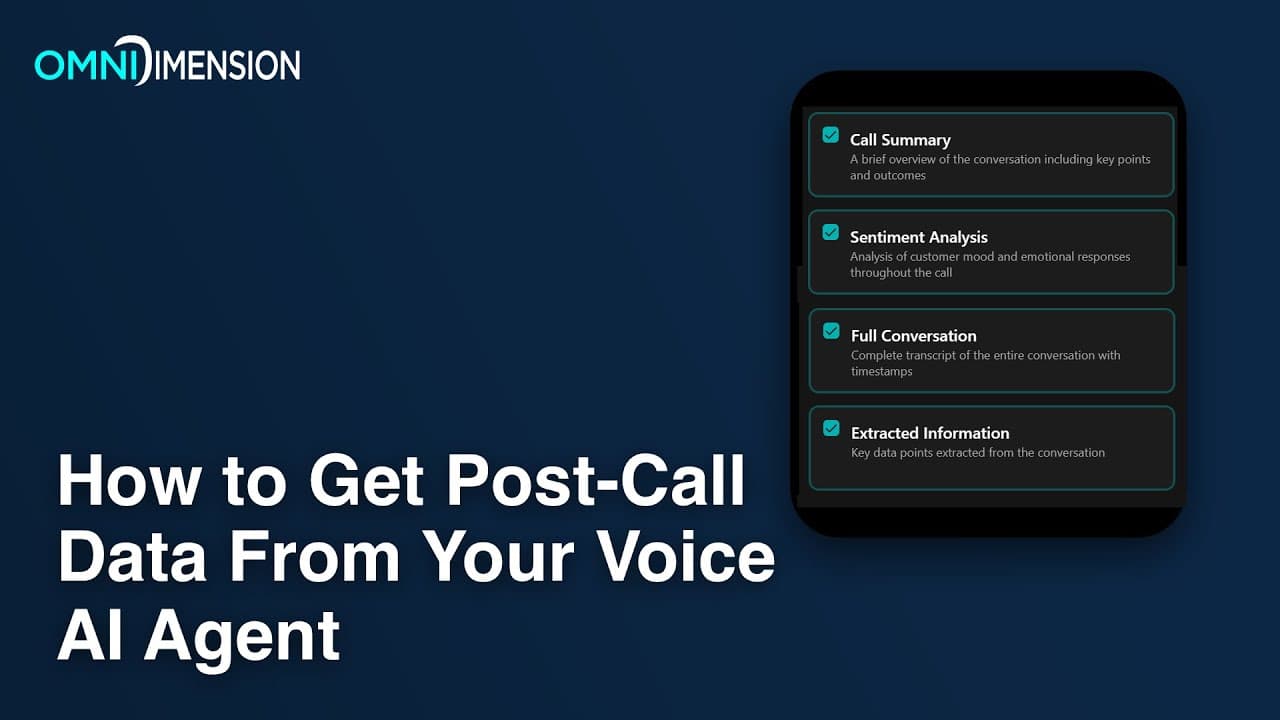
Video Tutorial: Get Post-Call Data
Learn how to retrieve and manage post-call data from your Voice AI Agent.
2. How to Access Post-Call Delivery Settings
- Go to your Agent Dashboard on OmniDimension.
- Navigate to the Post-Call section.
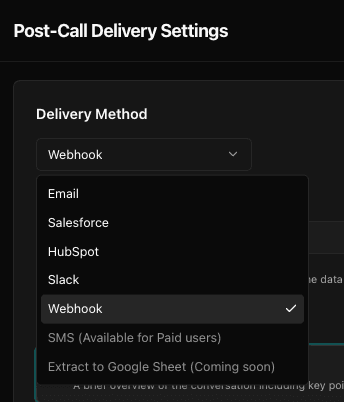
- Under the Delivery Method dropdown, you will see the following options for Email , Salesforce, Slack, Webhook, Hubspot etc.
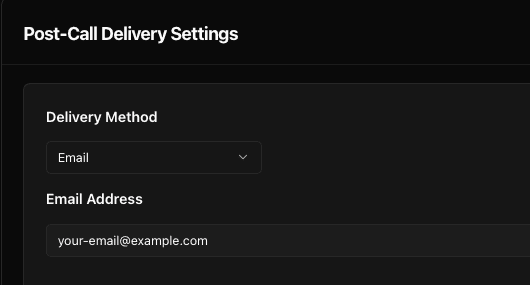
Email Delivery
Use this method to receive an email with the full call report.
- Select Email from the dropdown.
- Enter the recipient email address where you’d like the report to be sent.
- Configure the include fields like - summary, sentiment, variables, full conversation etc
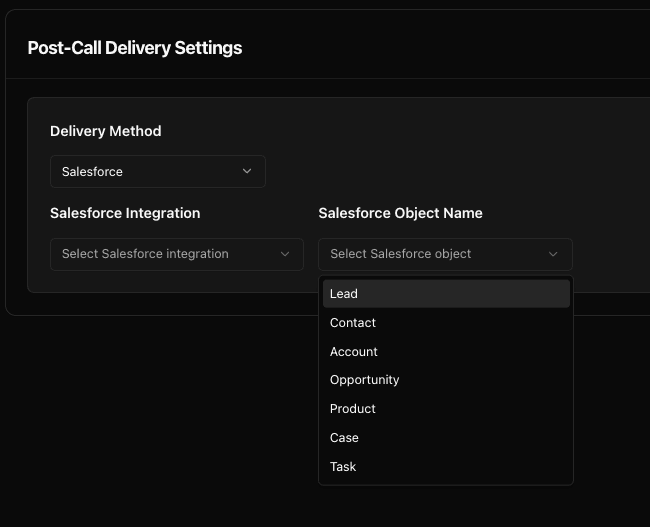
Salesforce Integration
Push post-call data directly to a specific object in your Salesforce CRM.
- Select Salesforce from the dropdown.
- Choose the salesforce integration from dropdown. If not available then you can create new integration for salesforce from integrations tab.
- Choose the target object: Lead, Contact, Account , Product etc
- It will automatically map the extracted variables to salesforce fields.
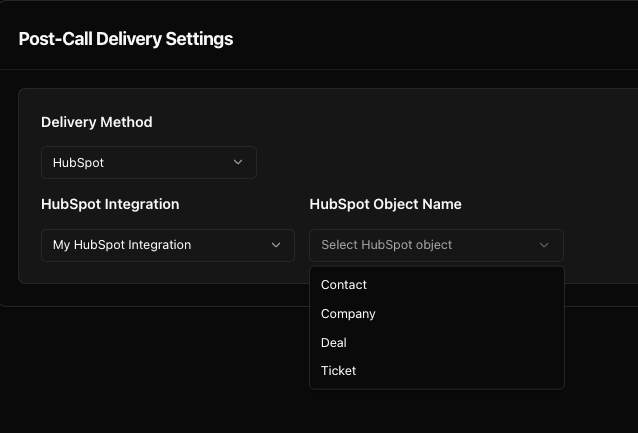
HubSpot Integration
Send call summaries and variable data to HubSpot CRM records.
- Select HubSpot from the dropdown.
- Choose the hubspot integration from dropdown. If not available then you can create new integration for hubspot from integrations tab.
- Choose the target object: Contact, Deal, Ticket , Company
- It will automatically map the extracted variables to hubspot fields.
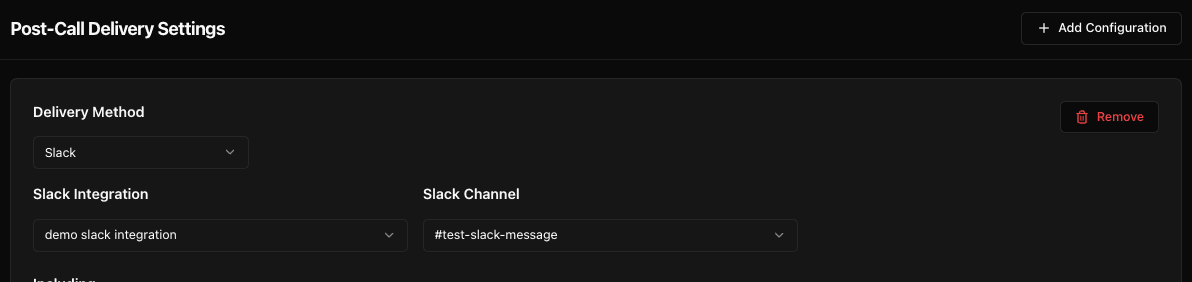
Slack Integration
Post a message to a Slack channel after every call.
- Choose Slack as the delivery method.
- Choose the slack integrations from the dropdown. If not available then you can create new integration for slack from integrations tab
- Select the channel to which messages should be posted (e.g., #sales-leads, #support-alerts).
- Choose what data to include: Summary, Sentiment, Extracted Variables, Full Conversation etc
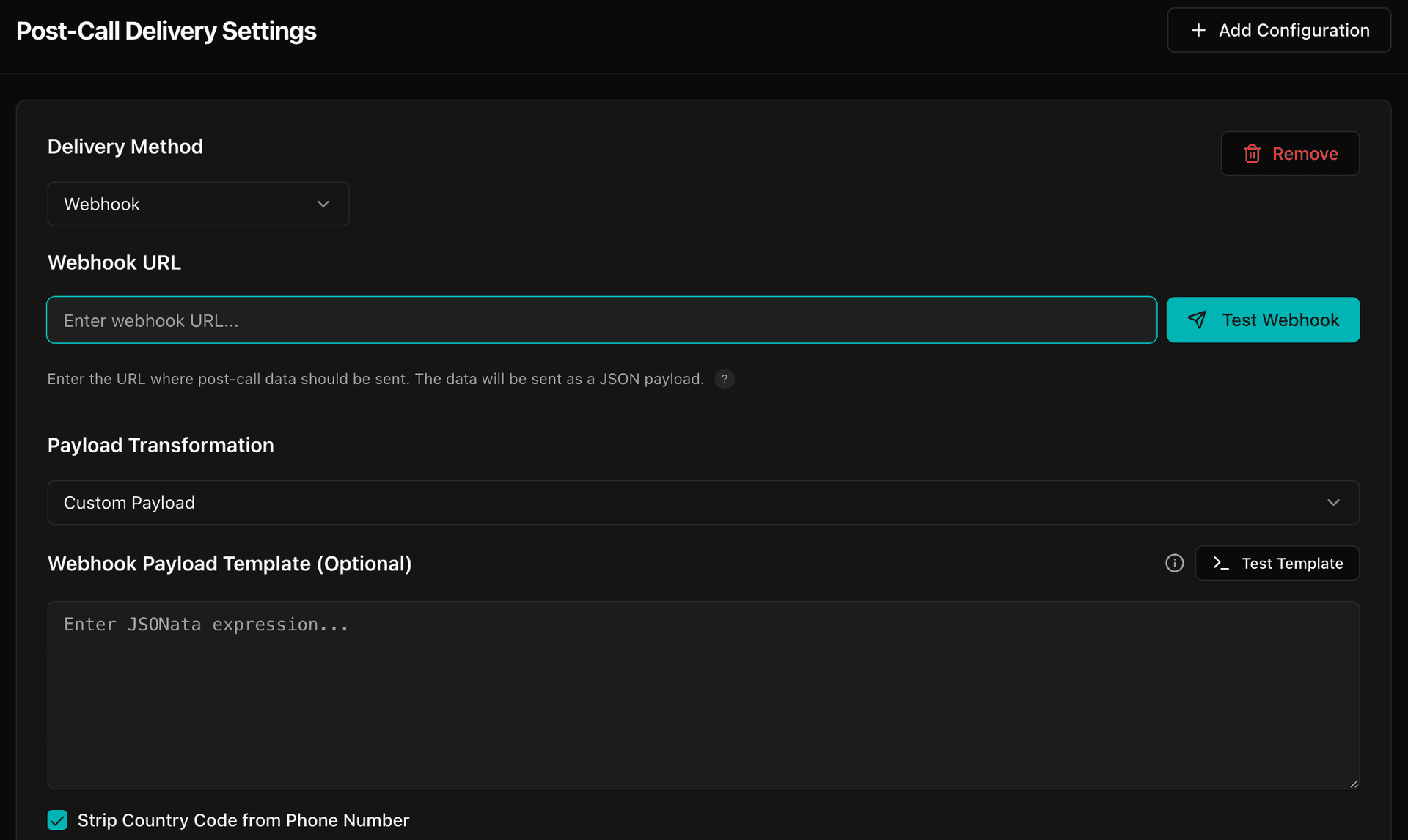
Webhook
Send structured JSON data to any external system or automation tool (Make, Zapier, n8n etc).
- Select Webhook from the delivery method dropdown.
- Paste the Webhook URL of your receiving system.
- Select 'Standard JSON' to send our data as-is, OR select 'Custom Payload' to transform it.
- If using Custom: Click 'Test Template', write your logic, and verify with the Real-Time Playground.
Reference: Available Variables
Use these variables in your Custom Payload:
phone_number: Customer's phone numberto_number: Agent/Bot phone numberbot_name: Name of your agentcall_status: e.g., "completed"call_report.summary: AI summary of the callcall_report.sentiment: "Positive", "Neutral", or "Negative"call_report.extracted_variables.[key]: Your custom extracted data (e.g., $.call_report.extracted_variables.email)
Example: LeadSquared Schema
[
  {"Attribute": "Phone", "Value": phone_number},
  {"Attribute": "Name", "Value": call_report.extracted_variables.name},
  {"Attribute": "Email", "Value": call_report.extracted_variables.email},
  {"Attribute": "Notes", "Value": call_report.summary}
]
💡 Pro Tip: Real-Time Testing
Before testing your template, make sure to add your Extracted Variables in the configuration. The Test Template playground will automatically populate with realistic dummy data based on your specific variable names, allowing you to verify your custom payload logic instantly.
3. Best Practices
- Test each delivery method before going live using the built-in 'Test Connection' feature.
- For Slack, Salesforce, and HubSpot, ensure you grant the necessary permissions during OAuth.
- Use Webhook.site or RequestBin to inspect real payloads during integration.
- Always sanitize or encrypt sensitive data when sending via webhook or email.