
Dynamic Campaign Guide
Learn how to create a Dynamic Campaign — a long-running bulk call campaign that accepts contacts in real time via a webhook API, ideal for CRM integrations and continuous outreach.
What is a Dynamic Campaign?
A Dynamic Campaign is a special type of bulk call campaign where contacts are added in real time through an API webhook — instead of being uploaded all at once via a CSV file.
- Stays alive indefinitely — never auto-completes when the queue empties
- Accepts new contacts at any time via a simple HTTP POST webhook
- Transitions to 'Waiting' status when the queue is empty, then resumes automatically when a new contact arrives
- Perfect for CRM integrations, real-time lead pipelines, or always-on outreach campaigns
- Supports the same scheduling, auto-retry, and call-rescheduling features as regular campaigns
Prerequisites
Before creating a Dynamic Campaign, make sure the following are in place.
- A phone number in your dashboard — Buy one directly from the Number Shop or import your own (Twilio, Exotel, etc.)
- An AI agent configured and attached to that phone number
- An API key for authenticating webhook requests — find it on sidebar under Account & Billing → API
- The external system (CRM, automation platform, etc.) that will send contacts to the webhook
Step 1: Campaign Details & Phone Number
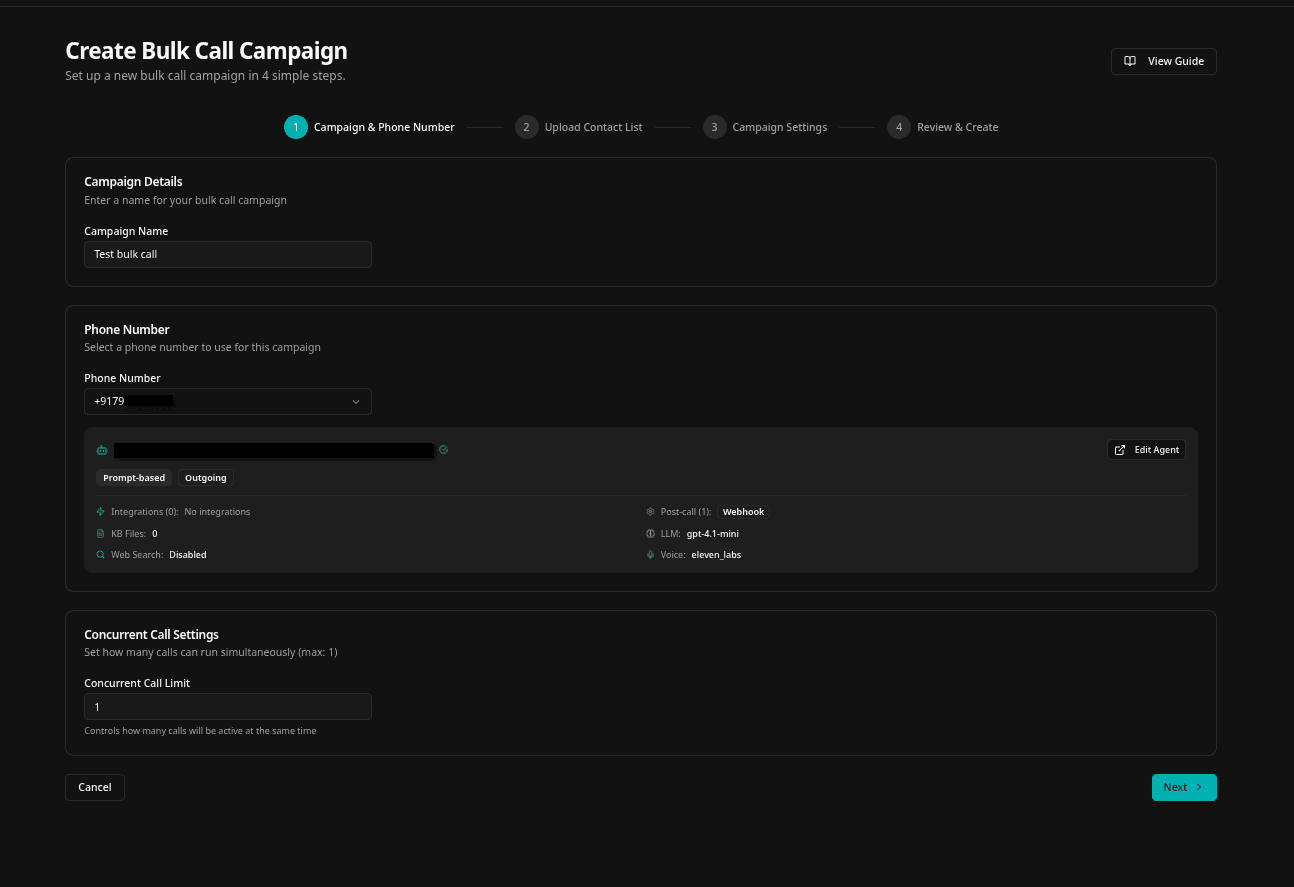
Start the campaign creation wizard. Enter a campaign name and select the phone number with the attached agent.
- Navigate to Bulk Call from the dashboard sidebar
- Click 'Create New Campaign'
- Enter a descriptive campaign name (e.g., 'Real-Time Lead Outreach')
- Select your phone number from the dropdown — the attached agent will be shown automatically
- Click 'Next' to continue
Step 1: Enter a campaign name and select the phone number with attached agent
Step 2: Enable Dynamic Mode
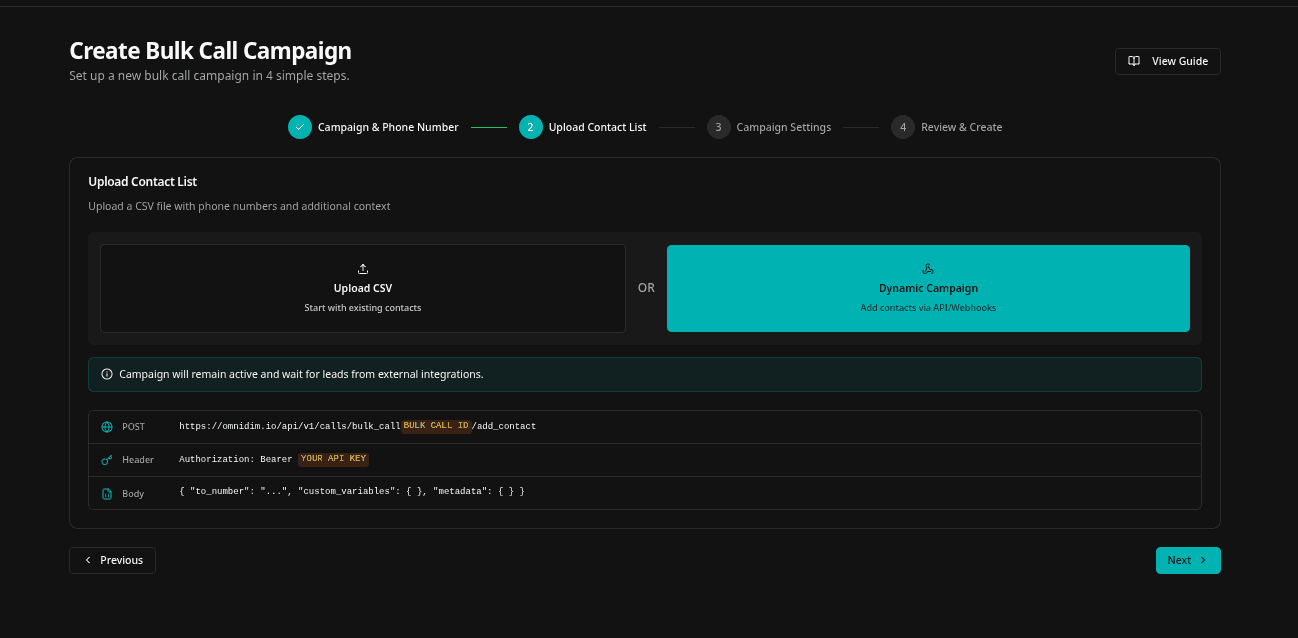
On the contact upload step, switch from CSV upload to Dynamic Campaign mode.
- You will see two options: 'Upload CSV File' and 'Dynamic Campaign (Add contacts via API/Webhooks)'
- Select 'Dynamic Campaign'
- No CSV file is required — contacts will be added later through the webhook
- Optionally configure Call Conditions to automatically filter which contacts get called
- Click 'Next' to continue
Step 2: Select 'Dynamic Campaign' to enable webhook-based contact delivery
Step 3: Scheduling & Retry Settings
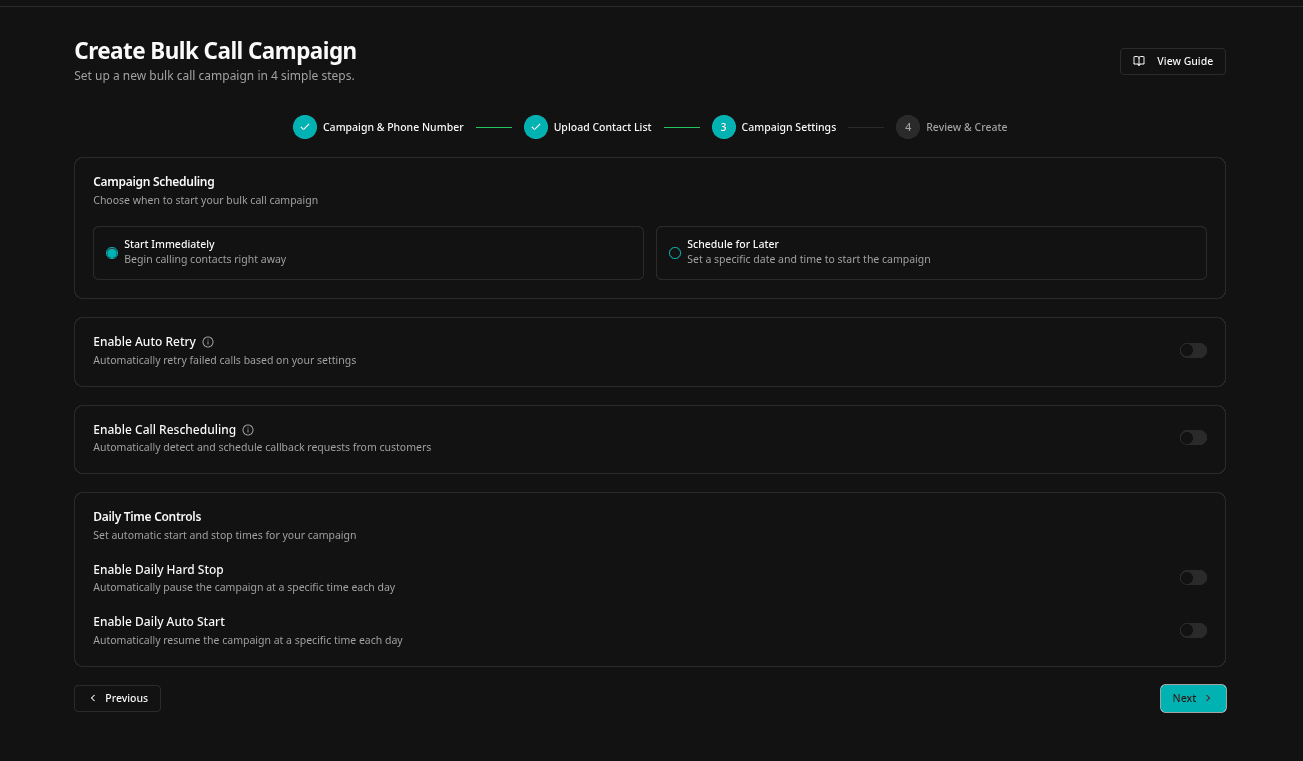
Configure when the campaign runs and set up auto-retry for failed calls.
- Choose 'Start Immediately' or 'Schedule for Later' with a specific date, time, and timezone
- Enable 'Daily Hard Stop' to pause calling outside of business hours
- Enable 'Daily Auto Start' to automatically resume calls each morning
- Turn on Auto Retry and set a retry limit (up to 6 attempts) for failed calls
- Enable Call Rescheduling to let the AI handle 'call me back later' requests automatically
- Click 'Next' to review
Step 3: Configure operating hours, auto-retry, and call rescheduling
Step 4: Review & Create
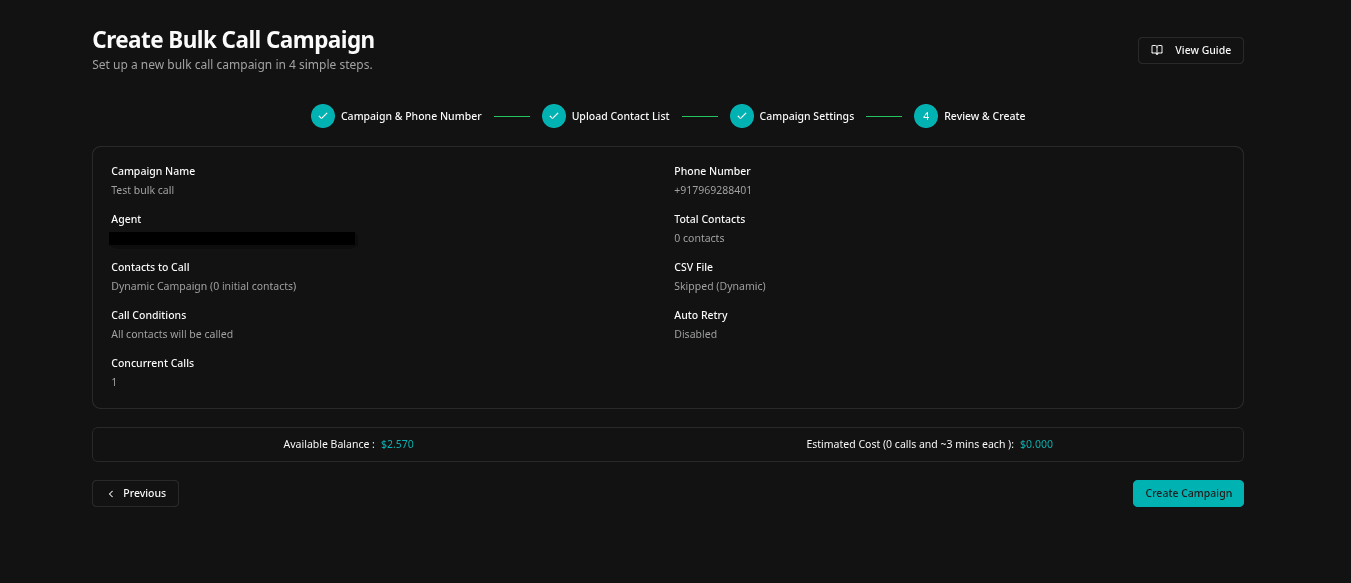
Review all campaign settings before launching the Dynamic Campaign.
- Confirm the campaign name, phone number, and agent
- Verify the campaign type is shown as 'Dynamic Campaign'
- Check scheduling and retry configuration
- Click 'Create Campaign' — the campaign will start and wait for contacts via webhook
Step 4: Final review before creating the Dynamic Campaign
Campaign Status Flow
After creation, a Dynamic Campaign cycles through these statuses automatically.
- In Progress — actively making calls from the queue
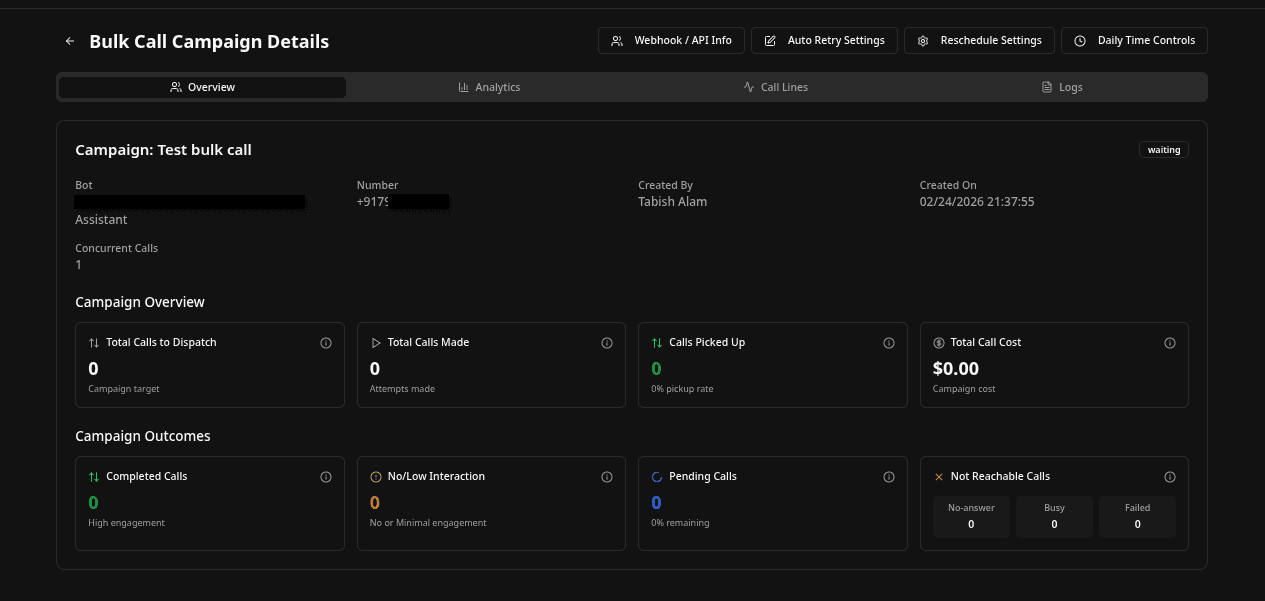
- Waiting — queue is empty; campaign is idle but alive, ready to resume when a contact arrives
- Auto Paused — outside operating hours (if daily hard stop is configured)
- Paused — manually paused by the user
- A Dynamic Campaign will never move to 'Completed' — it stays alive indefinitely
Campaign transitions between In Progress, Waiting, and Auto Paused automatically
Adding Contacts via Webhook
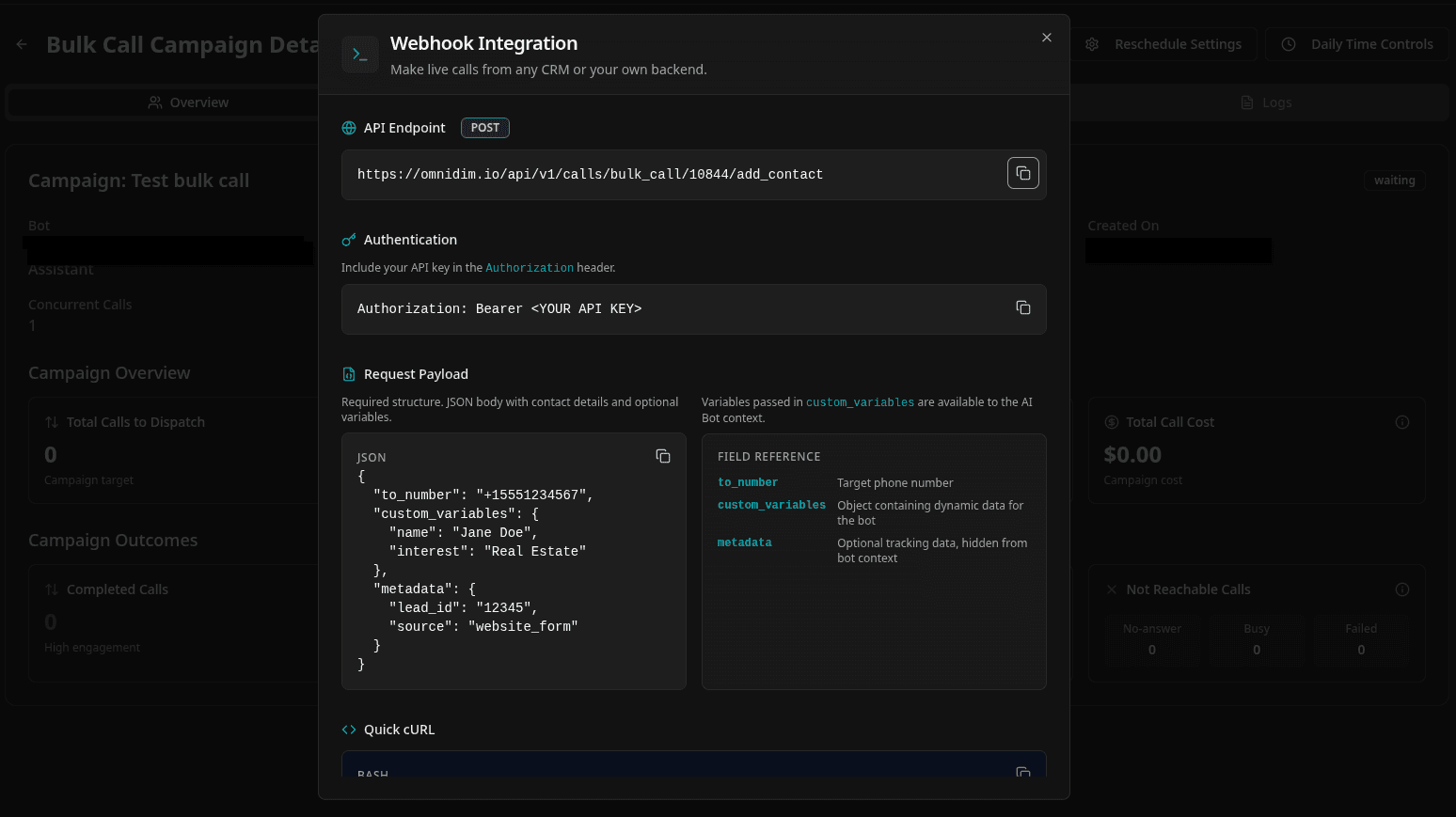
Once the campaign is created, use the webhook API to push contacts from any external system.
- Find the Campaign ID on the campaign detail page
- Send a POST request to the webhook endpoint with the contact's phone number
- Include custom_variables to pass context to the AI agent (e.g. name, reason for call)
- Include metadata for your own tracking (not shared with the agent)
- The campaign will immediately start calling if it is in 'Waiting' or 'In Progress' status
Webhook endpoint and payload shown in the campaign detail page
Webhook Request Format
Use the following structure when sending contacts to the webhook endpoint.
- Endpoint: POST /api/v1/calls/bulk_call/{campaign_id}/add_contact
- Header: Authorization: Bearer YOUR_API_KEY
- Body field 'to_number': The contact's phone number in E.164 format (e.g. +15551234567)
- Body field 'custom_variables': Key-value pairs injected into the agent's conversation context
- Body field 'metadata': Key-value pairs stored for tracking purposes only (hidden from agent)
Example: cURL
A minimal example adding one contact to a dynamic campaign.
curl -X POST "https://backend.omnidim.io/api/v1/calls/bulk_call/123/add_contact" \
  -H "Authorization: Bearer YOUR_API_KEY" \
  -H "Content-Type: application/json" \
  -d '{
    "to_number": "+15551234567",
    "custom_variables": {
      "name": "Jane Doe",
      "interest": "Home Insurance"
    },
    "metadata": {
      "crm_lead_id": "lead_9876",
      "source": "website_form"
    }
  }'
Webhook Response
A successful request returns the updated campaign status and the new contact's line ID.
- 'status': 'success' confirms the contact was accepted
- 'campaign_status': shows the current campaign state (e.g. in_progress or waiting)
- 'line_id': the unique ID of the new contact record in this campaign
- If the campaign is outside operating hours, the contact is queued and called when the campaign resumes
Campaign Management
You can control a Dynamic Campaign at any time from the campaign detail page.
- Pause — temporarily stop all outbound calls (contacts added while paused will be called on resume)
- Resume — restart a paused campaign
- Cancel — permanently end the campaign; no further contacts will be accepted
- Update Retry Settings — change retry limits and schedule without recreating the campaign
- Update Reschedule Settings — enable or disable AI-driven call rescheduling mid-campaign
Best Practices
Tips to get the most out of Dynamic Campaigns.
- Use meaningful custom_variables that match variables in your agent's welcome message or prompt
- Set daily operating hours to avoid calling contacts outside business hours
- Enable auto-retry to recover from unanswered or failed calls without manual intervention
- Use the metadata field to store CRM or tracking IDs so you can correlate call results with your records
- Monitor the campaign status via the dashboard or poll /api/v1/calls/bulk_call/{id} for real-time status
- Pause the campaign before making major agent changes to avoid inconsistent conversations mid-campaign